Current state
Start with the Workspace account that already administers the mail.
PunchOp reads delivery evidence an administrator already holds. It does not send mail, it does not open a mailbox, and it does not purge phishing. Google is still reviewing the consent screen.
What is true today
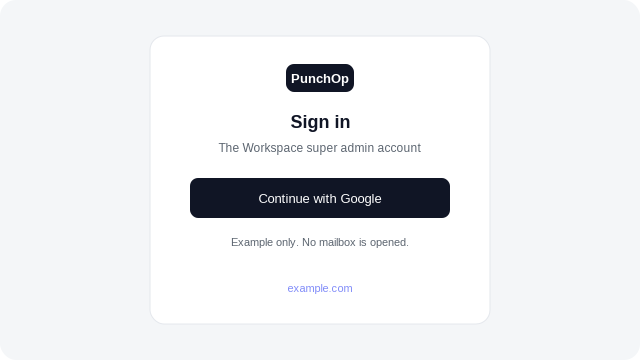
- Sign-in uses the Google account. The last approved consent screen is the one in use.
- Proving the super admin can show “Google hasn’t verified this app”. Advanced, then continue, grants read-only access to users and domains. PunchOp checks the admin role, reads the verified domains, counts users, and discards that token.
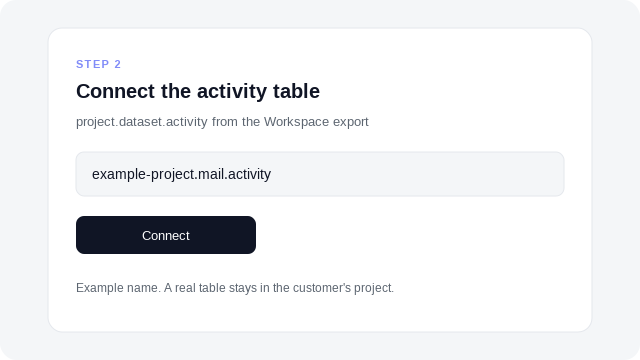
- The activity table is connected as project.dataset.activity. Admin log reading is the other path. It does not return an SMTP code.
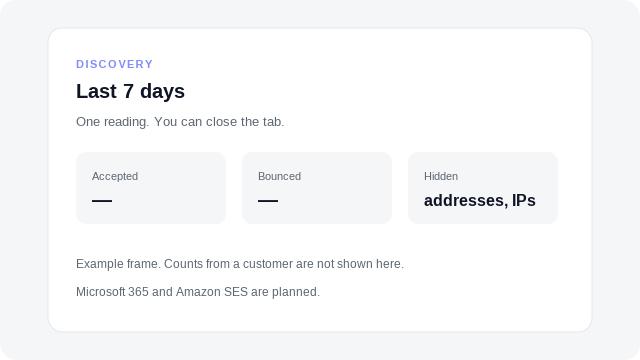
- One discovery report reads the last 7 days. Addresses, message ids and IP addresses stay hidden in that report. The summary is written by Vertex AI in the EU. You can close the tab while it runs.
- A later reading uses credits, bought by card through Stripe Checkout. Checkout shows the price before you pay.
- DMARC aggregate reports are planned: one address per organisation, reports matched to the domains proven at sign-in, then read beside the Workspace logs.
- Microsoft 365 and Amazon SES are planned.
Who is needed on your side
- A Workspace super admin, to prove the organisation.
- For the BigQuery export, someone who can edit that dataset. They give read access to the account PunchOp names for your organisation, then set one label that names your organisation. The screen shows both commands.
- If your Google Cloud organisation only allows its own domains in IAM, that read access is refused. Your cloud administrator decides whether to allow it.
- For DMARC reports, once they open: someone who edits the DNS of the domain.
How to proceed
- Sign in
Open the application with the super admin account for that Workspace customer.
- Pass the Google warning if it appears
It is the unverified-app screen, not a block on the sign-in itself. Continue only if you administer that customer.
- Connect the evidence
Give the activity table in three parts, or authorize the admin logs. The table stays in the project you already use.
- Read the discovery report
It starts once. It says what the last 7 days show, and what they do not show.
The screens, with no customer data
These frames are examples. They are not a tenant, and they are not a measurement.
Before a wider opening
Write through the beta form if you want help with the first connection, or to be told when the Google review is finished. Do not send logs, credentials or message bodies.